HubSpot

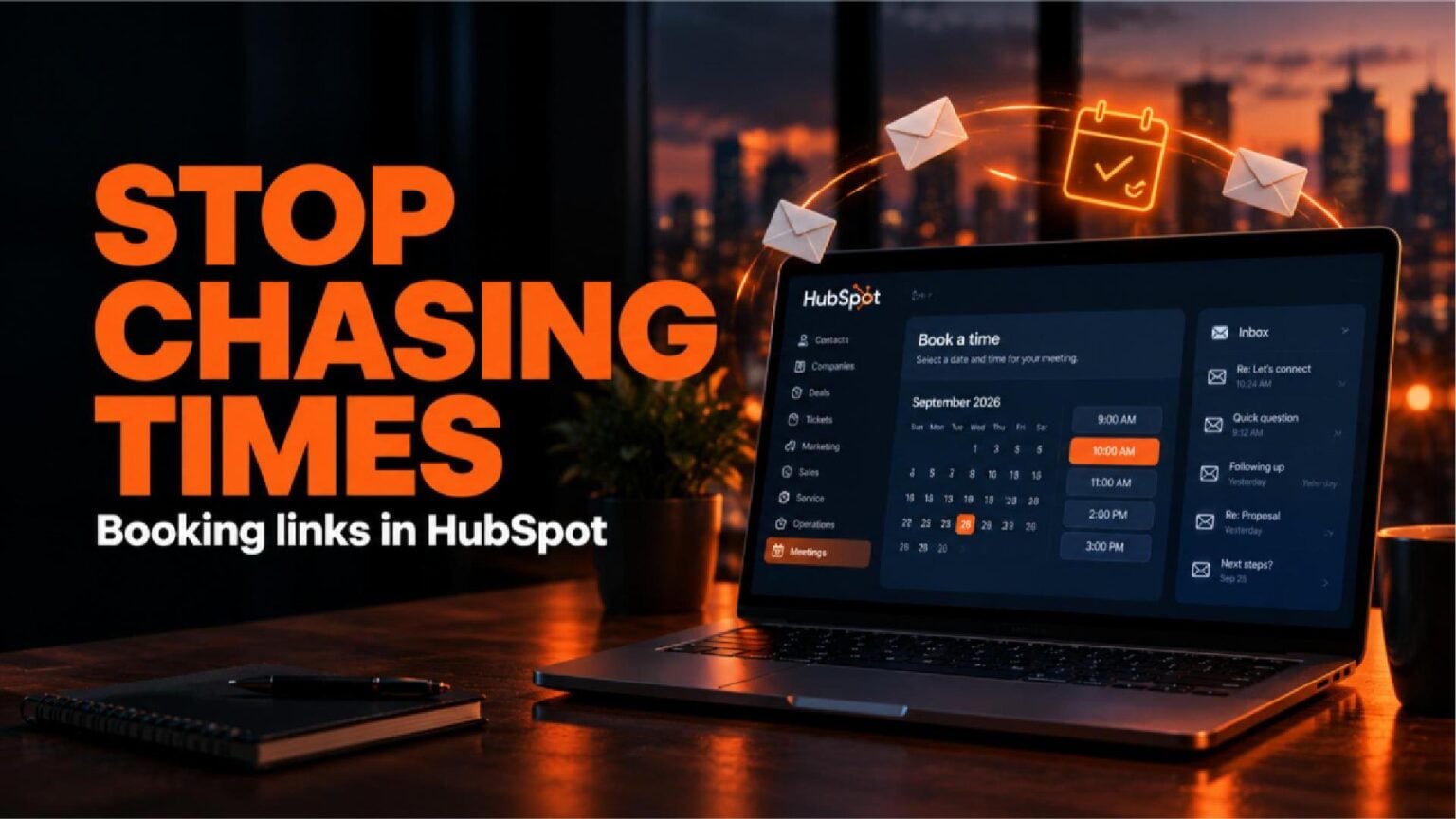
Stop Chasing Meeting Times Over Email: Booking Links in HubSpot

Published:

Share:

A prospect says they want to talk. Then it takes three or four emails just to agree on a time, checking calendars back and forth, proposing slots that turn out to already be taken, and somewhere in that thread, they go quiet.

Here’s how to let them pick the time themselves, right inside HubSpot, so that thread never has the chance to go cold in the first place.

Build the Scheduling Page Once

Inside HubSpot, hover over Sales and click Meetings Scheduler, then Create scheduling page, and choose One-on-One. Give it an internal name that makes sense to your own team, and an event title the prospect will actually see, something like Intro Call. Personalizing the title with the contact’s first and last name turns a generic invite into something that reads like it was built for them specifically, because at that point, it effectively was.

Add a videoconferencing link so the meeting is ready to join the moment it’s booked, no separate email with a link to dig up later, no scramble five minutes before the call trying to find where it got sent. Set your time zone and your working hours on the schedule tab so nothing gets offered outside the window you actually keep.

The Three HubSpot Booking Links Settings That Actually Matter

This is the part worth slowing down for, in the additional settings a lot of people click past. Minimum notice time controls how far ahead someone has to book, so a prospect can’t grab a slot fifteen minutes from now while you’re in another meeting. Buffer time sets the actual gap between meetings, so back-to-back bookings don’t leave you starting the next call mid-bite of lunch. Start time increment decides whether people can book on the quarter hour, the half hour, or whatever rhythm actually matches how your calendar runs.

None of these are set-and-forget defaults. They’re the difference between a scheduling page that fits how you actually work and one that just moves the scheduling problem from email into HubSpot instead of solving it, still costing time, just in a different place than before.

Send It, and Watch It Log Itself

Once the page is built, using it takes seconds. Open the contact, click email, write a subject line and one line of context, then click Meetings, choose Insert scheduling link, and pick the page. The prospect sees a simple flow: pick a time, enter their name and email, confirm, nothing to download, no account to create.

The part worth noticing happens after they click confirm. The meeting is already sitting on the contact’s record. Nobody typed it in, nobody copied a time into a calendar invite by hand, nobody had to remember to log the activity afterward. That’s the actual time savings, not just skipping the back-and-forth, but skipping the manual logging that usually follows it.

Check Your Own Link Before Anyone Else Does

One habit worth building before any link goes out for the first time: open it yourself. Check the earliest slot, the last slot, and the time zone it’s actually showing, since all three are easy to get wrong on the first pass and easy to miss once the page is live. A booking link only saves time if its settings genuinely match how you work, and a wrong time zone or a minimum notice window set too tight turns a convenience into a prospect quietly picking a different vendor instead of fighting with a broken calendar.

This pairs well with How to Use HubSpot AI to Build a Better Sales Playbook: one removes the friction of getting a meeting on the calendar in the first place, the other makes sure the meeting itself is actually worth having once it happens. Both come down to the same idea behind Why Execution Capacity Is What’s Killing Your Pipeline: the tools already exist inside HubSpot. Someone still has to set them up to match how the business actually runs.

If your team needs someone keeping HubSpot set up like this, matched to how your team actually books time, that’s exactly what we do. Book a meeting with us.

Latest Posts